Setting up a VPN connection using Apple iPod, iPhone or iPad on iOS 7
To get started select 'Settings' from the main screen.
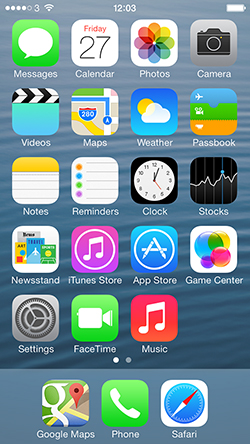
Then select 'General'.

Scroll down and select 'VPN'.
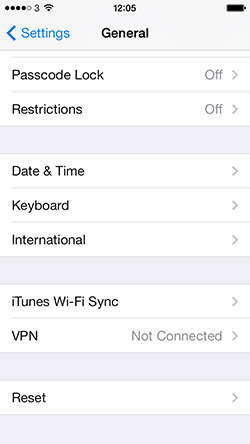
Choose 'Add VPN Configuration'.
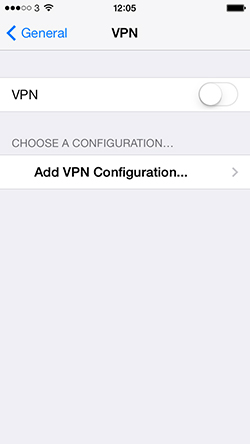
At the top of the next screen choose "PPTP" then enter the following details:
Description: WOW VPN
Server: vpn.wowvpn.com
Account: your wowvpn username
RSA SecurID: OFF
Password: your wowvpn password
Encryption Level: We recommend 'Auto' BUT have seen where selecting 'Maximum' was necessary.
Send all traffic: ON
At the top right select 'Save'.
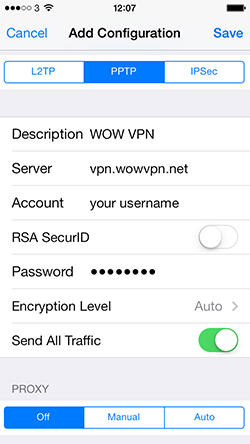
Your WOW VPN connection has now been created.
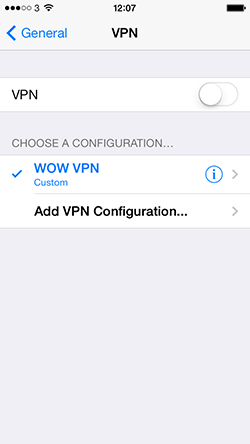
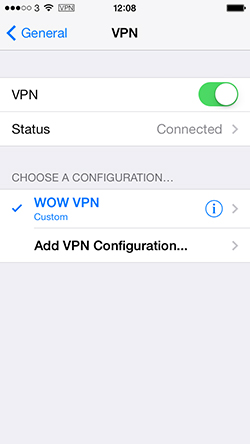
Toggle your VPN connection to "ON" and you will notice a new VPN symbol appear at the top of the screen, you are connected to WOW VPN.
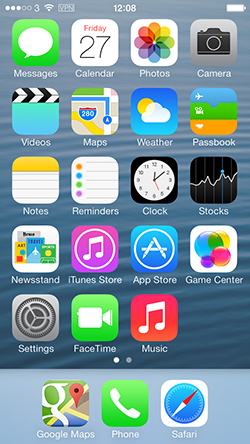
Go back to the Home Screen and you will notice the VPN symbol is still at the top of the screen, this shows you are still connected to the VPN and any internet browsing you now do will go via WOW VPN.
To disconnect go back to the VPN page and switch VPN to 'OFF'.
Need Help Setting Up WOW VPN?
Our support team is ready to help you configure your VPN connection quickly and securely.
Contact Support
[ back to top ]