Setting up a VPN connection using OpenVPN for iPhone - Method 1
Step 1
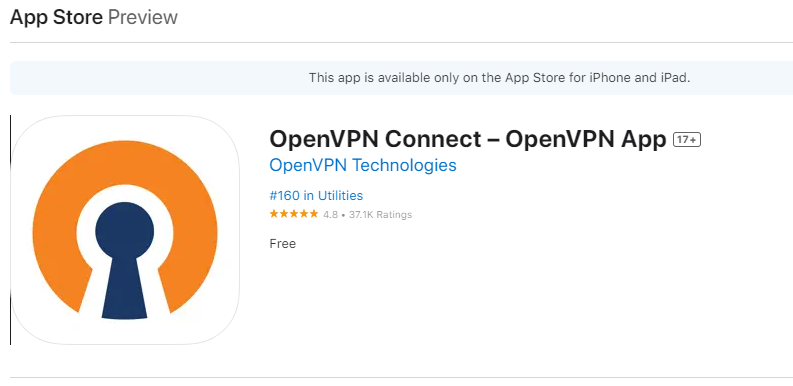
Download the OPENVPN from Appstore
Step 2
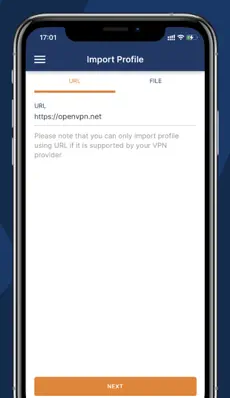
Double click on OPENVPN and copy or enter the URL as: https://www.wowvpn.com/openvpn/wowvpn-UDP/wowvpn-UDP.ovpn
Step 3
Now long press on the downloaded UDP file and choose 'Share' option and select to share with OPENVPN and select ADD option to add the profile
Step 4
Now Enter the username that was used to buy the subscription and click Connect and Allow and enter password used to buy subscription. This should connect to VPN service.
Step 5
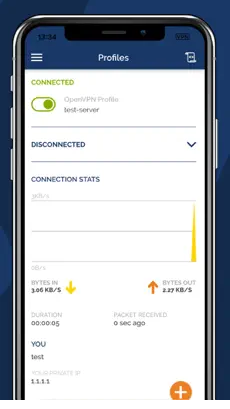
You should now be connected to the Internet via the OpenVPN App
Remember to disconnect from the VPN when you are not using WOW VPN as your internet connection speed may be slightly faster without it.
Setting up a VPN connection using OpenVPN for iPhone - Method 2
Step 1
Download the OPENVPN from Appstore
Step 2
Downloadable ovpn file UDP : Wow-ovpn-UDP
Step 3
Save the file as "wowvpn-UDP.ovpn"
Step 4
Now long press on the Extracted UDP file and choose the 'Share' option , select to share with OPENVPN and select "ADD" option to add the profile
Step 5
Now Enter the username that was used to buy the subscription and click Connect and Allow and enter password used to buy subscription. This should connect to VPN service.